29 Nov 2026 · TubeCortex
YouTube Video to Quiz, With Answers That Link to the Video
Save one quiz prompt, paste a lecture's link, and TubeCortex writes multiple-choice and short-answer questions, each answer tied to its minute in the video.
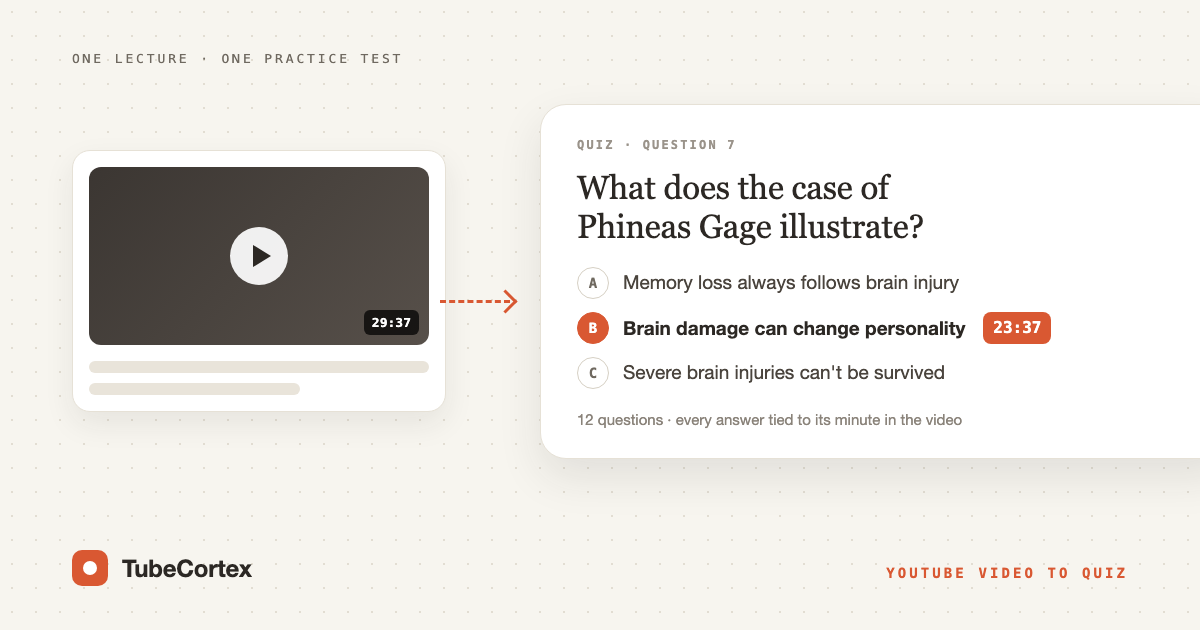
To turn a YouTube video into a quiz with TubeCortex, save a quiz prompt as your own summary type, paste the video's link, and press Summarize: you get practice questions plus an answer key that gives the time each answer comes from. That one saved prompt is the whole YouTube video to quiz workflow, and you can reuse it on any captioned video after that. We tried it once, on Yale's 29-minute "1. Introduction" psychology lecture with Paul Bloom. TubeCortex had 8 multiple-choice questions, 4 short-answer questions and a full answer key ready 16 seconds after we pressed Summarize.
TubeCortex's quiz prompt at a glance
| What it does | Turns a YouTube video into a practice quiz with an answer key |
| Best for | Students testing themselves on a lecture before an exam |
| What you give it | A link to a YouTube video that has captions, plus a quiz prompt you save once |
| What you get back | Multiple-choice and short-answer questions, then answers with the time each comes from |
| Free to start | 2,500 free credits (dozens of full-length summaries), no card needed. Create your free account |
How to turn a YouTube video into a quiz in 4 steps
1. Open Summary type and choose New mode
Sign in to TubeCortex with Google and open Home. On a computer that's the Quick summary box on the right; on a phone it's the paste box near the top, and its options appear once you tap into it. Open Summary type (the button showing your current type, such as Chapters) and scroll to the bottom of the list: below the five built-in types, the last row says New mode.
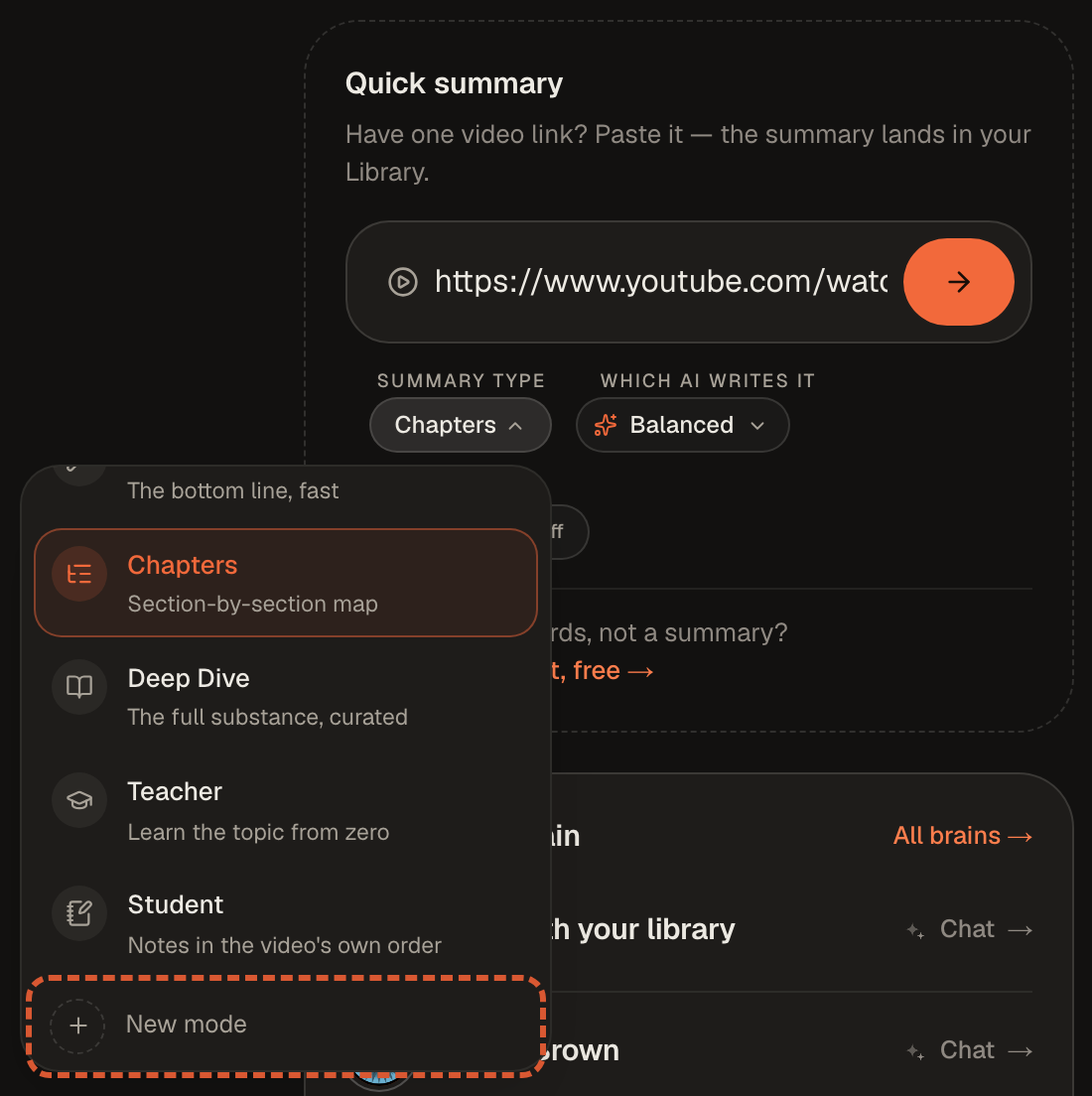
Open Summary type and choose New mode at the bottom of the list.
2. Name it and paste the quiz prompt
A box called "New summary mode" opens. Type a name (we used "Quiz me"), paste the prompt below into the Prompt field, and press Save mode. Here's the TubeCortex quiz prompt we used, tested on one lecture:
Write a practice quiz from this video so I
can test myself.

1. Start with 8 multiple-choice questions,
numbered 1 to 8. Give each one four options
labeled A, B, C and D, with exactly one
correct answer. Ask about the main ideas the
video spends time on, not trivia.
2. Then write 4 short-answer questions,
numbered 9 to 12, that take a sentence or two
to answer.
3. Don't put any answers next to the questions.
4. End with a section headed Answers. For each
question, give the correct answer, one
sentence on why, and the timestamp where the
video covers it.
TubeCortex saves it to your account, so you write it once and use it on any captioned video after that.
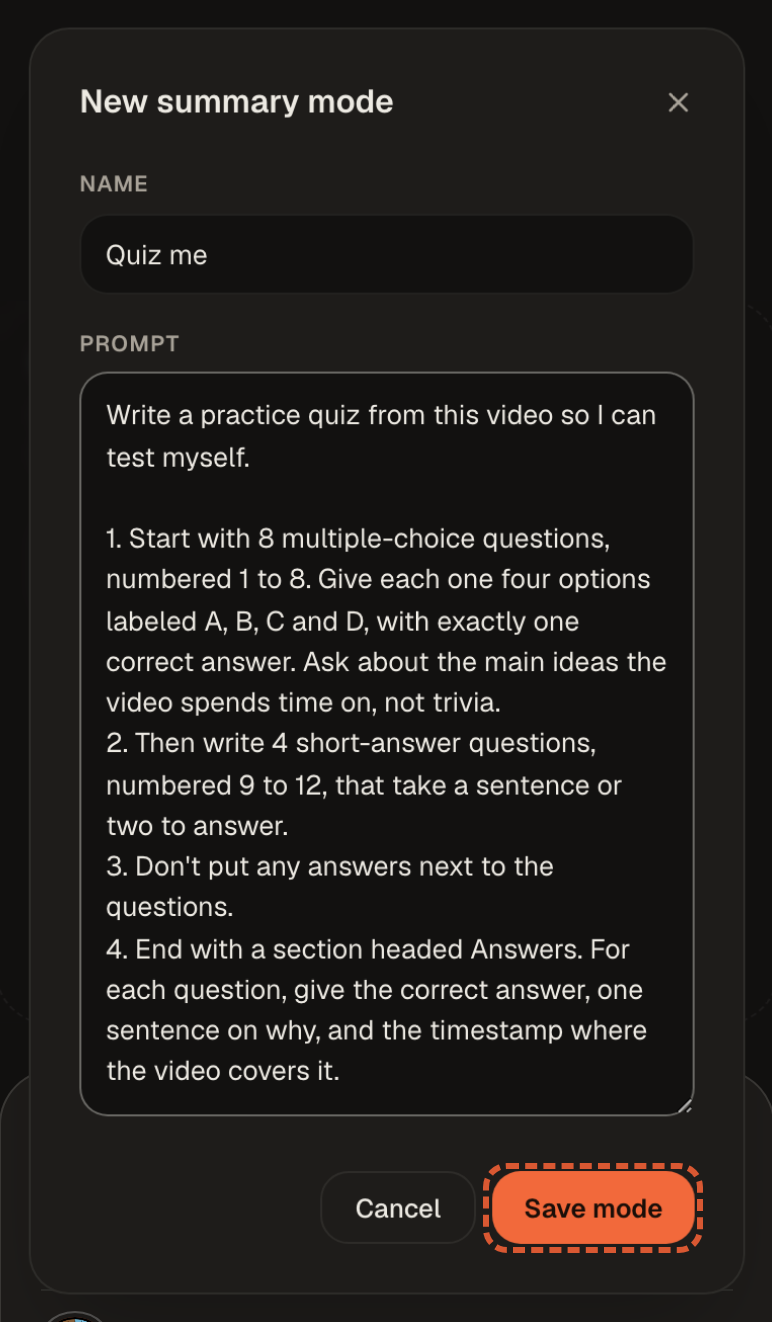
Name the mode, paste the quiz prompt, and press Save mode.
3. Paste the video's link and pick your quiz
Paste the lecture's YouTube link where the box says "Paste a YouTube link…". Then open Summary type again and pick your new quiz type. (It doesn't switch to it by itself after you save.) Press the orange arrow at the end of the box.
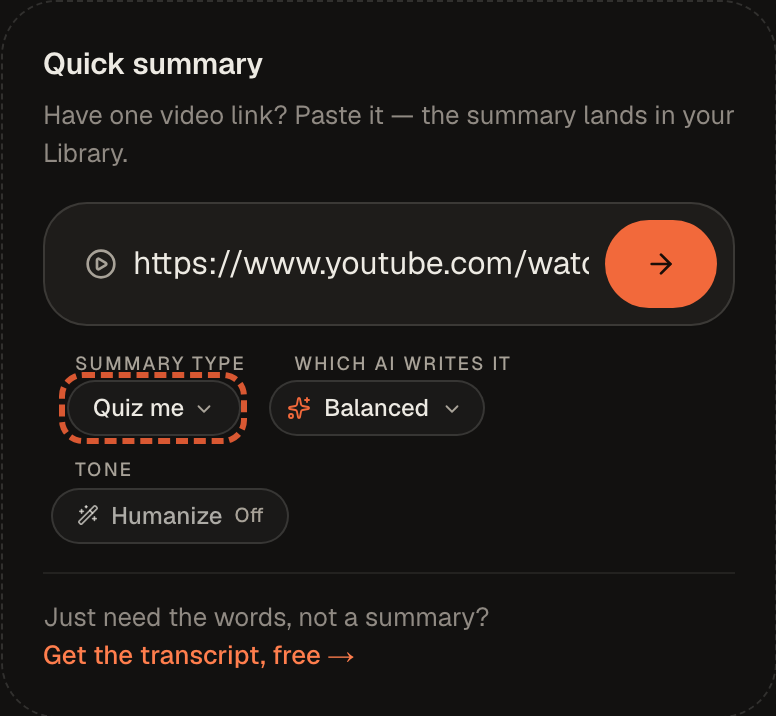
With the link pasted and Quiz me picked, press the orange arrow.
4. Take the quiz, then check the Answers
TubeCortex opens the quiz on its own page when it's ready. Ours took 16 seconds. The questions come first and the Answers section sits at the end of the same page, so scroll slowly and answer before you look. The quiz is also saved to your Library for the night before the exam.
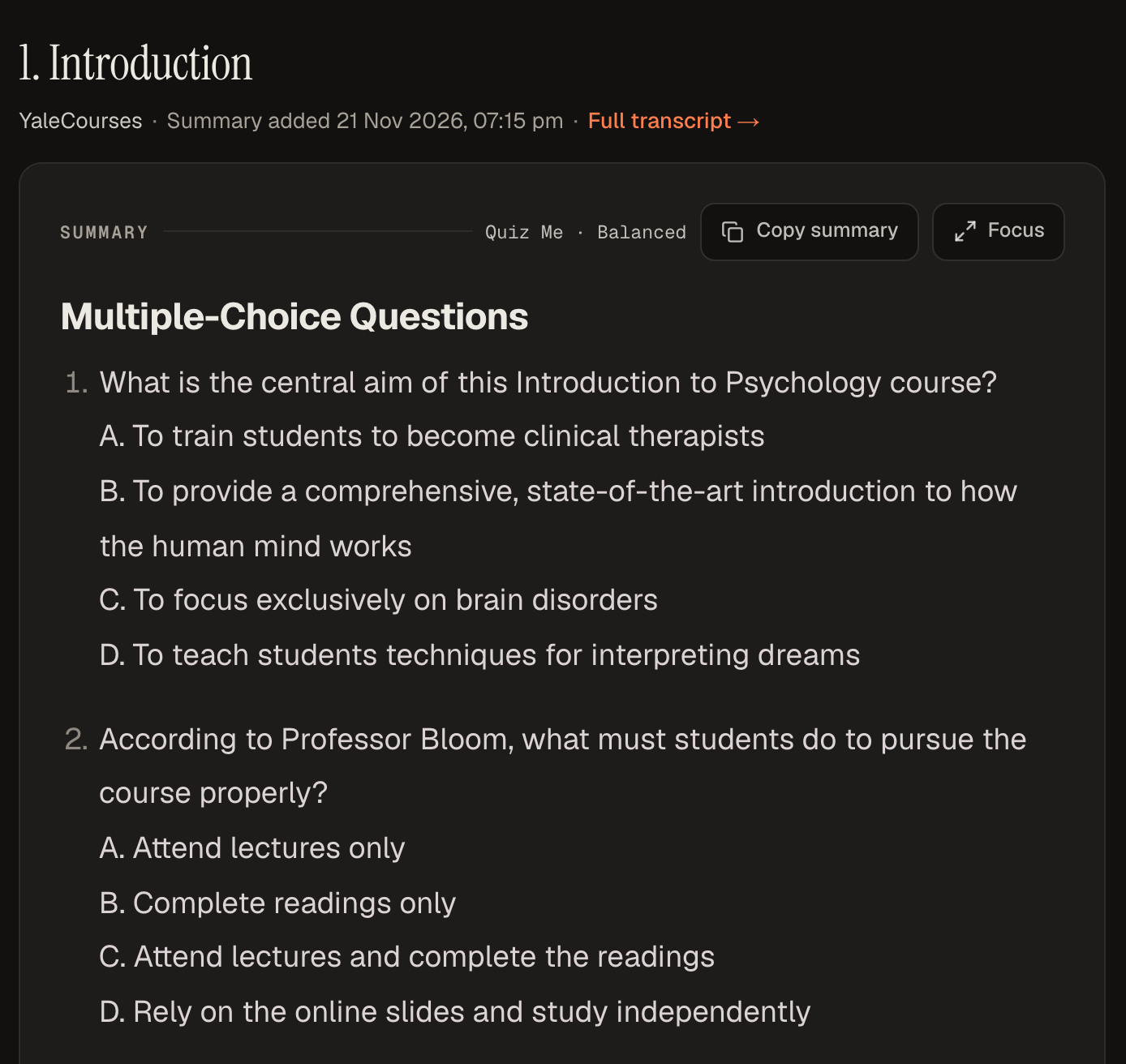
The questions come first, with four options each.
That's the whole loop: one saved prompt, one link, and a quiz that tells you where in the video each answer lives.
Make the prompt your own
The prompt is plain English, so you can change it. A few edits to try (we only tested the version above):
- Want a harder quiz? Add "Ask why and how questions, not just what" to the quiz prompt.
- Prefer a quick check? Change the numbers in the quiz prompt, say 5 multiple-choice and 2 short-answer.
- Studying for a written exam? Ask the quiz prompt for "3 essay questions with a short model answer each."
- Learning in another language? Add "Write the quiz in Spanish." TubeCortex writes in English unless your prompt asks for another language.
To keep more than one version, save each as its own mode with its own name.
How the quiz gets written
Here's what happens after you press the arrow, in plain words.
Where the questions come from
Many YouTube videos carry captions: the subtitles you switch on with the CC button. TubeCortex reads those captions, never the sound itself, and gives them to an AI along with your prompt. Think of it as handing a tutor the lecture's script and a note that says "quiz me on this." A video without captions has no script to hand over, so it can't be turned into a quiz.
Why the answers stay on the video
TubeCortex adds its own rules to every prompt, yours included: stick to what the video says, and cite the time when you point at a moment. So the answer key leans on the lecture, not on the AI's general knowledge. Before the quiz reaches you, TubeCortex also checks the times against the captions, and moves a time that points at the wrong moment when it can find the right one. A time it can't place stays as written, which is one more reason to spot-check.
Why each time is a link
Captions carry timing: each line knows the second it was spoken. So an answer's time points at a moment in the video, and inside TubeCortex you can tap it and the video jumps there. For the long version of how this works, here's how AI summarizes and answers from video.
What this looks like in practice
Say Bloom's lecture is on your syllabus and the exam is Thursday. The lecture runs 29 minutes and 37 seconds. Here's how the quiz played out for us:
- With "Quiz me" saved, we pasted the link and pressed the arrow. Sixteen seconds later: 12 questions and a 12-item answer key, 896 words in all.
- Question 7 asks what the case of Phineas Gage illustrates. Say you guessed wrong.
- The answer key gives B, "that brain damage can profoundly affect personality, moral control, and behavior," with three times next to it: 23:37, 23:59 and 24:09.
- Tap 23:37. TubeCortex jumps the video to Bloom telling Gage's story; the captions at that second read "He lost his sense of right and wrong."
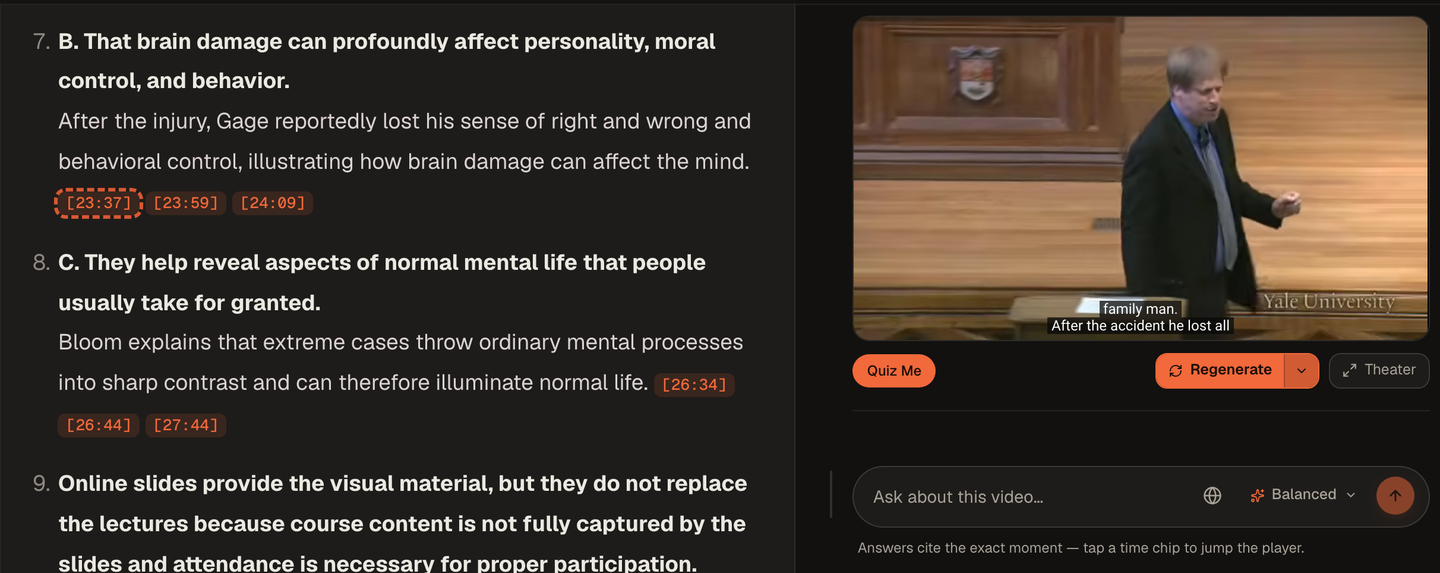
Tap an answer's time and the lecture plays from that moment.
We checked three of the twelve answers against the captions: the five areas of psychology at 11:36, Gage at 23:37, and Capgras syndrome at 25:07. All three matched what Bloom actually says. That's the habit we'd suggest for any AI quiz: when an answer surprises you, spend ten seconds on its time before you believe it.
Who else turns videos into quizzes
This guide is written for students testing themselves, but the same prompt helps others:
- Teachers can draft questions for a class from a video they assign, then edit them before handing them out.
- Self-taught learners can check that a tutorial actually stuck before moving on.
- If you'd rather have readable notes than questions, here's how to take notes from YouTube videos with the Student summary type.
What the quiz can and can't do
Note: The video needs captions. A video with captions turned off has nothing for TubeCortex to read, and it can't work from the sound.
Note: An AI writes the questions, and it can get one wrong or make one too easy. Check a surprising answer by tapping its time. We spot-checked three of twelve.
Note: The quiz can't see the screen. Slides, diagrams and anything written on a board aren't in the captions, so there are no questions about them.
Note: It's a page of text, not an interactive quiz. Nothing scores you, and there's no export to Google Forms, Kahoot, Quizlet or Anki. Copy summary gives you the quiz as text, with light formatting marks, to paste where you like.
Note: TubeCortex reads whichever caption track the video hands over first, and that isn't always the language the video is spoken in. Our first try, on a Crash Course video, came back built from Arabic captions (the quiz was still in English, because TubeCortex writes in English). The free transcript tool shows you the captions a video serves.
Note: Making a quiz needs a free TubeCortex account. It uses credits unless you pick TubeCortex Free in the AI setting beside Summary type. We ran ours on Balanced and didn't test Free. Making a second quiz of the same video is a new summary, so it costs again.
Frequently asked questions
Can AI make a quiz from a YouTube video?
Yes: TubeCortex can turn a YouTube video into a quiz when you save a quiz prompt as your own summary type and summarize the video with it. The questions come from the video's captions, and the answer key gives the time each answer comes from.
Is there a free YouTube video to quiz generator?
Yes, TubeCortex is free to start: new accounts get 2,500 free credits (dozens of full-length summaries), no card needed. Picking TubeCortex Free also spends no credits on a summary you start yourself (we tested our quiz on Balanced, not Free). You can also copy a video's transcript with TubeCortex's free transcript tool, which needs no account (without one there's a daily limit on videos nobody has fetched before), and paste it into a chat assistant along with the quiz prompt above.
Can I make a quiz for my students?
Yes, you can draft a quiz from a video you plan to assign, then copy it out with Copy summary and edit it in your own document. TubeCortex doesn't export to Google Forms or other quiz apps, so the questions arrive as text.
Does it make flashcards for Quizlet or Anki?
No, TubeCortex has no Quizlet or Anki export. You can change the prompt to ask for a list of questions with answers and copy that text, but getting it into a flashcard app is up to you.
Why does each answer have a timestamp?
Each TubeCortex quiz answer has a timestamp because the quiz prompt asks for one. TubeCortex's own rules also tell the AI to cite times from the video's captions, and TubeCortex checks those times before you see them. Inside TubeCortex, tapping a time jumps the video to that moment, so you can check an answer in seconds.
Recap
Turning a YouTube video into a quiz takes one prompt you save once in TubeCortex, then a link per video. You get multiple-choice and short-answer questions, an answer key at the end, and a time on each answer that takes you back to the moment it came from. Check the answers that surprise you, and you've got a practice test for every lecture on your list.
Got an exam coming up? Save the quiz prompt and try it on your next lecture.