8 Nov 2026 · TubeCortex
How to Copy a YouTube Transcript (Even on Your Phone)
Paste the link, switch timestamps off, and copy clean text into Word or ChatGPT. It works in your phone's browser too, free and with no account needed.
You want the words from a YouTube video in your notes or a chat with ChatGPT, and you don't want to type them out while you pause and rewind. To copy a YouTube transcript, paste the video's link into a free transcript tool, turn timestamps off if you want clean text, and press Copy. TubeCortex's free transcript tool does exactly that, in a phone's browser too, with no account. When we tried it on Programming with Mosh's "Python for Beginners" lesson (1:00:01 long), the whole talk came back as 9,840 words of text, about a 49-minute read.
TubeCortex's transcript tool at a glance
| What it does | Shows a YouTube video's transcript (its captions, as text) and lets you copy or download it |
| Best for | Students, and anyone who would rather read a lecture than rewatch it |
| What you give it | A YouTube link (a watch link, a youtu.be link or a Shorts link) or the video's ID |
| What you get back | The transcript with clickable timestamps, ready to copy, or to download as TXT, SRT, VTT or JSON |
| Free to start | Free, and no account needed. Open the free transcript tool |
How to copy a YouTube transcript in 4 steps
1. Paste the video's link
Copy the video's link first: it's the address in your browser bar, or Share and then Copy link in the YouTube app. Open the free YouTube transcript tool, paste the link into the box that says "Paste a YouTube link…", and press Get transcript. (On a narrow phone screen, that button shows only an arrow: it's the orange button at the end of the box.)
If nobody has fetched that video on TubeCortex before, you may see a "Verify you are human" box first. It's a quick check that keeps robots out. Signed-in users skip it.
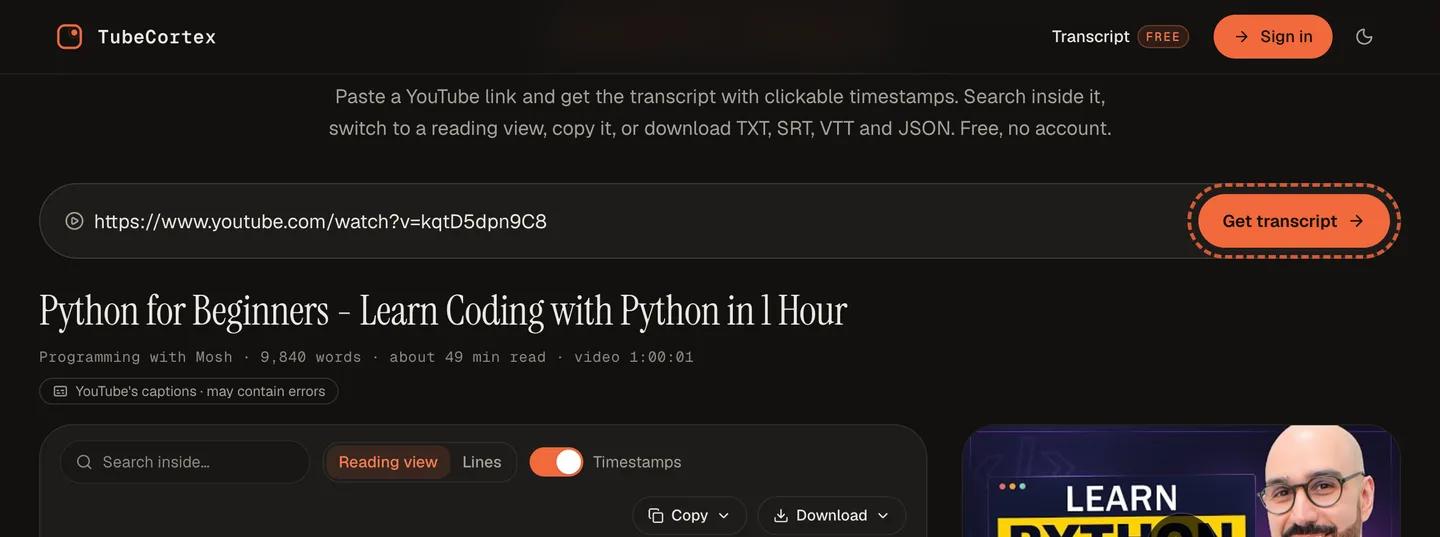
Paste the YouTube link into the box and press Get transcript.
2. Turn timestamps on or off
The transcript appears under the box, with a time in front of each paragraph. Each time is a link: tap it and the video jumps to that moment. Want clean text for an essay or a doc? Flip the Timestamps switch off.
Our take: keep timestamps on while you study, and switch them off only for the copy you hand in. The times are how you find your way back.
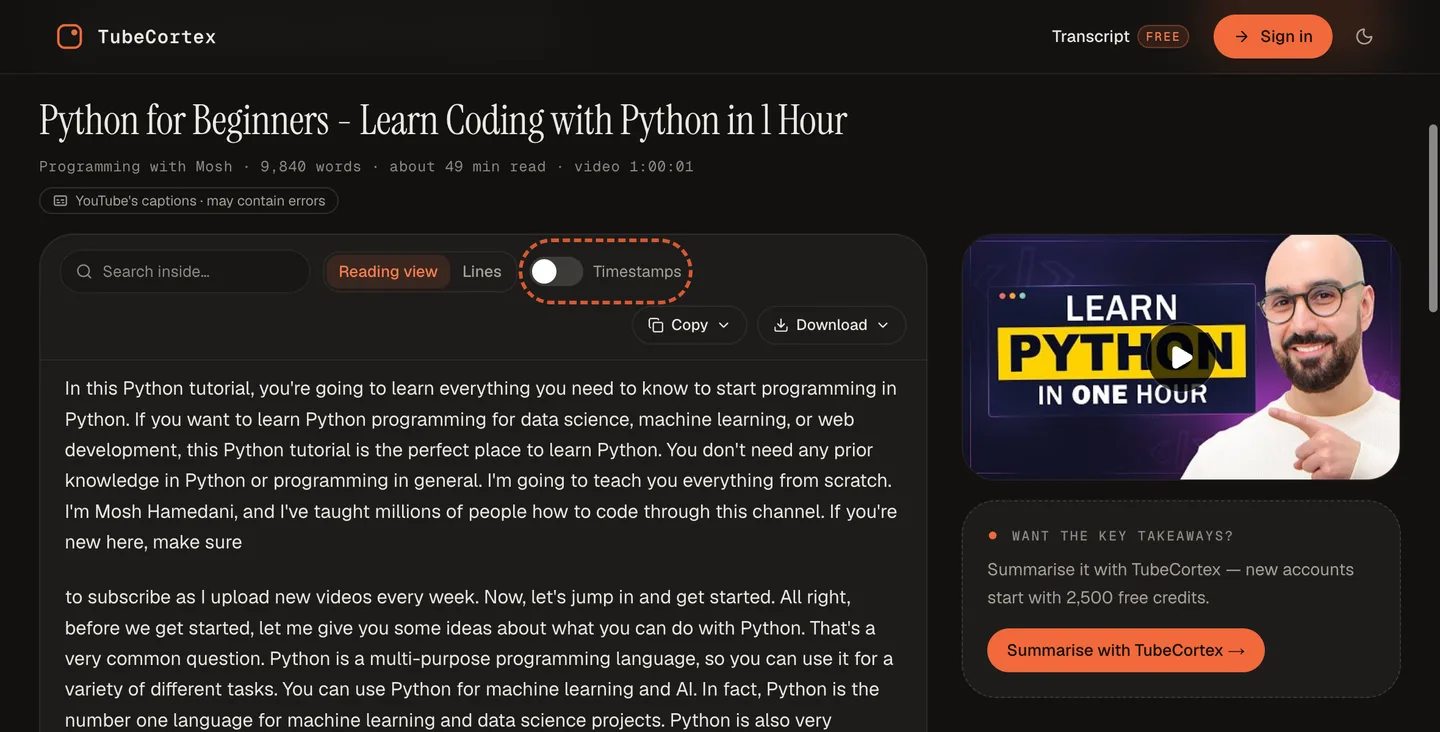
Switch Timestamps off to copy the words without times.
3. Press Copy, then Copy transcript
In TubeCortex's free transcript tool, open the Copy menu above the transcript and pick Copy transcript. A small note says "Transcript copied." Now paste it into Word, Google Docs, Notes, or wherever you're writing. Copy transcript follows the Timestamps switch: times in, or times out.
The same menu has more rows. Copy share text gives you the title, the YouTube link and the timestamped transcript in one go. The rows for ChatGPT or Claude get their own section below.
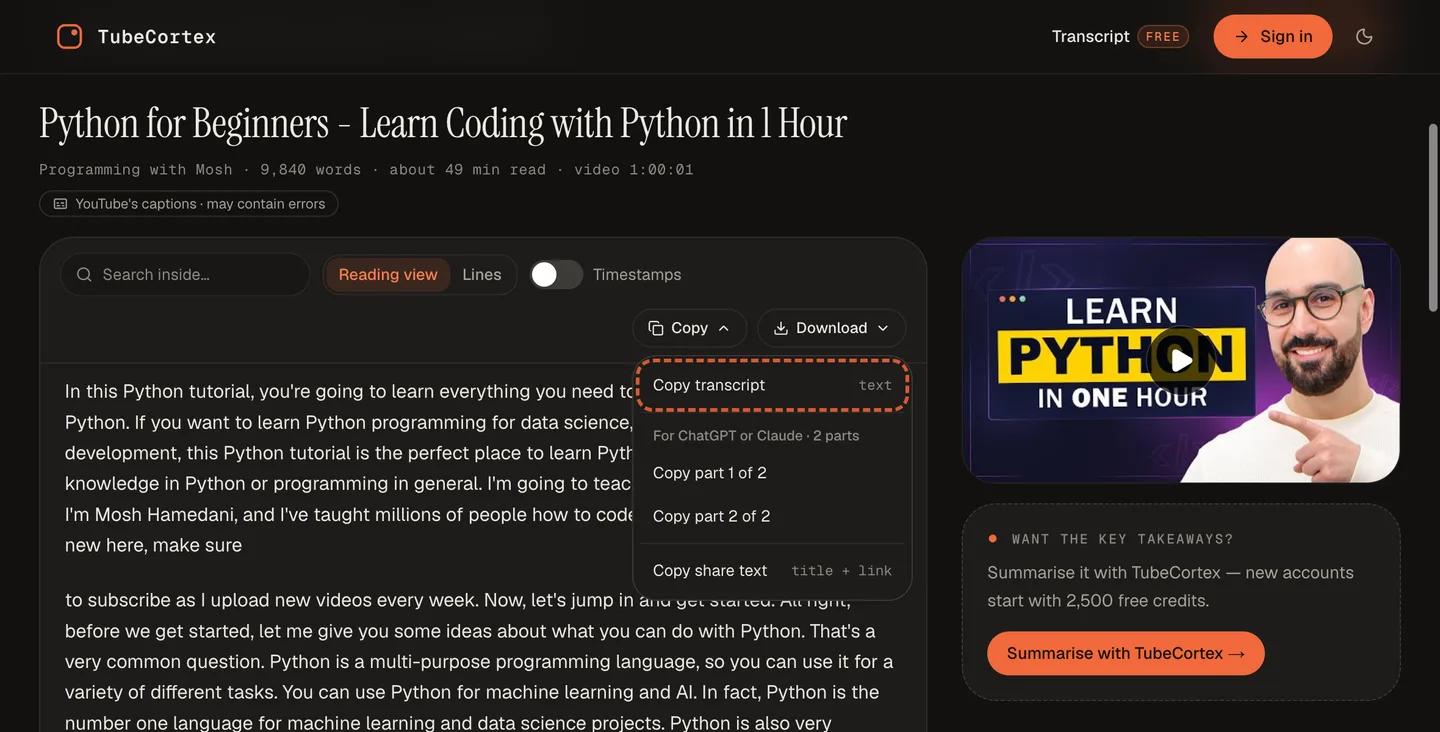
Open Copy and choose Copy transcript to put the whole text on your clipboard.
4. Or download it as a file
Prefer a file you can keep? The Download menu has five: Text with timestamps (.txt), Text only (.txt), two subtitle files (.srt and .vtt), and a .json file for developers. The file is made right in your browser from the text already on the page, so it downloads straight away.
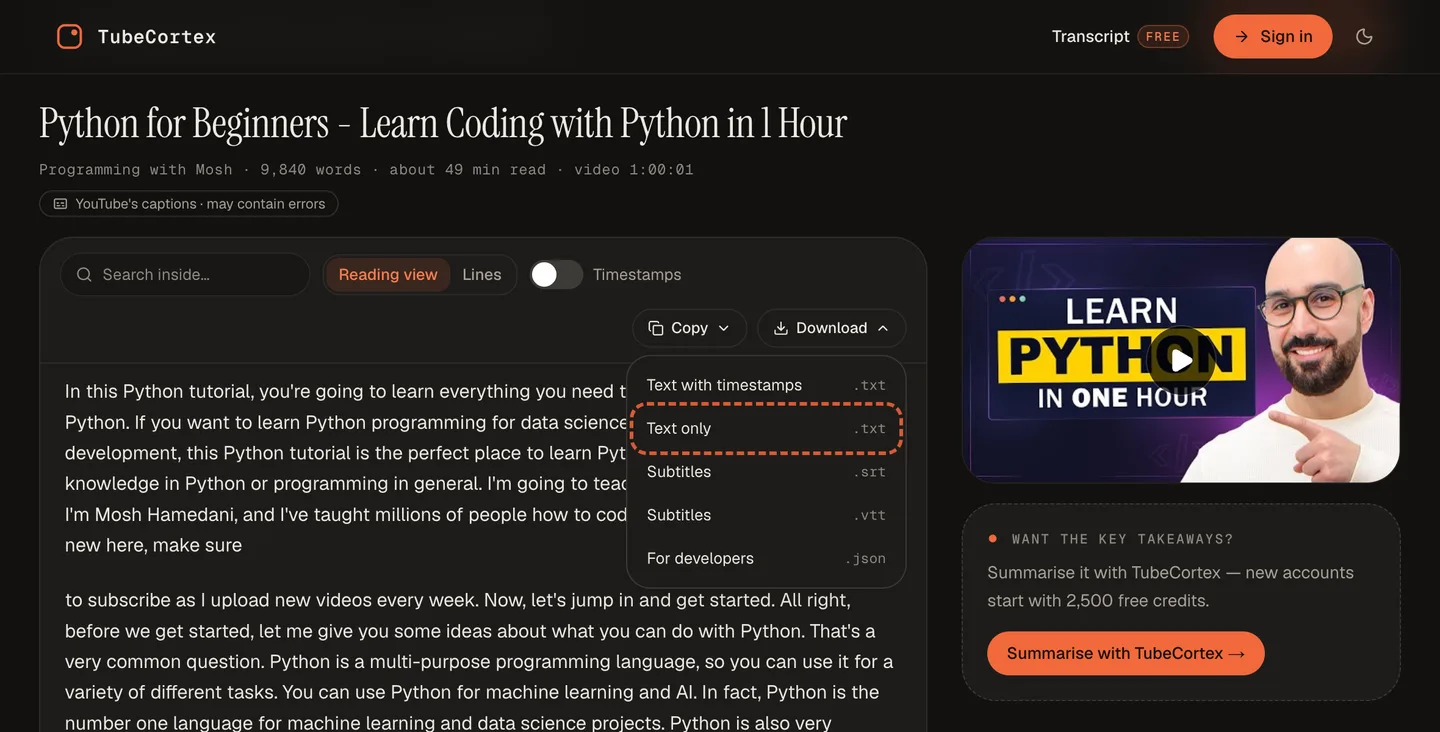
Pick Text only for a plain .txt file with no times in it.
That's the whole job: the video's words, as text you can paste anywhere, without a single rewind.
How to copy a YouTube transcript on your phone
To copy a YouTube transcript on a phone, use TubeCortex's free transcript tool in your phone's browser. The steps are the same on an iPhone, an iPad or an Android phone. In the YouTube app, tap Share, then Copy link. Open tubecortex.com/youtube-transcript in Safari or Chrome, paste the link, tap Get transcript (the orange button at the end of the box; on a narrow phone screen it shows only an arrow), then tap Copy and Copy transcript.
If you've tried to select a transcript inside the YouTube app and given up, this route skips that problem. You never select anything. You press Copy.
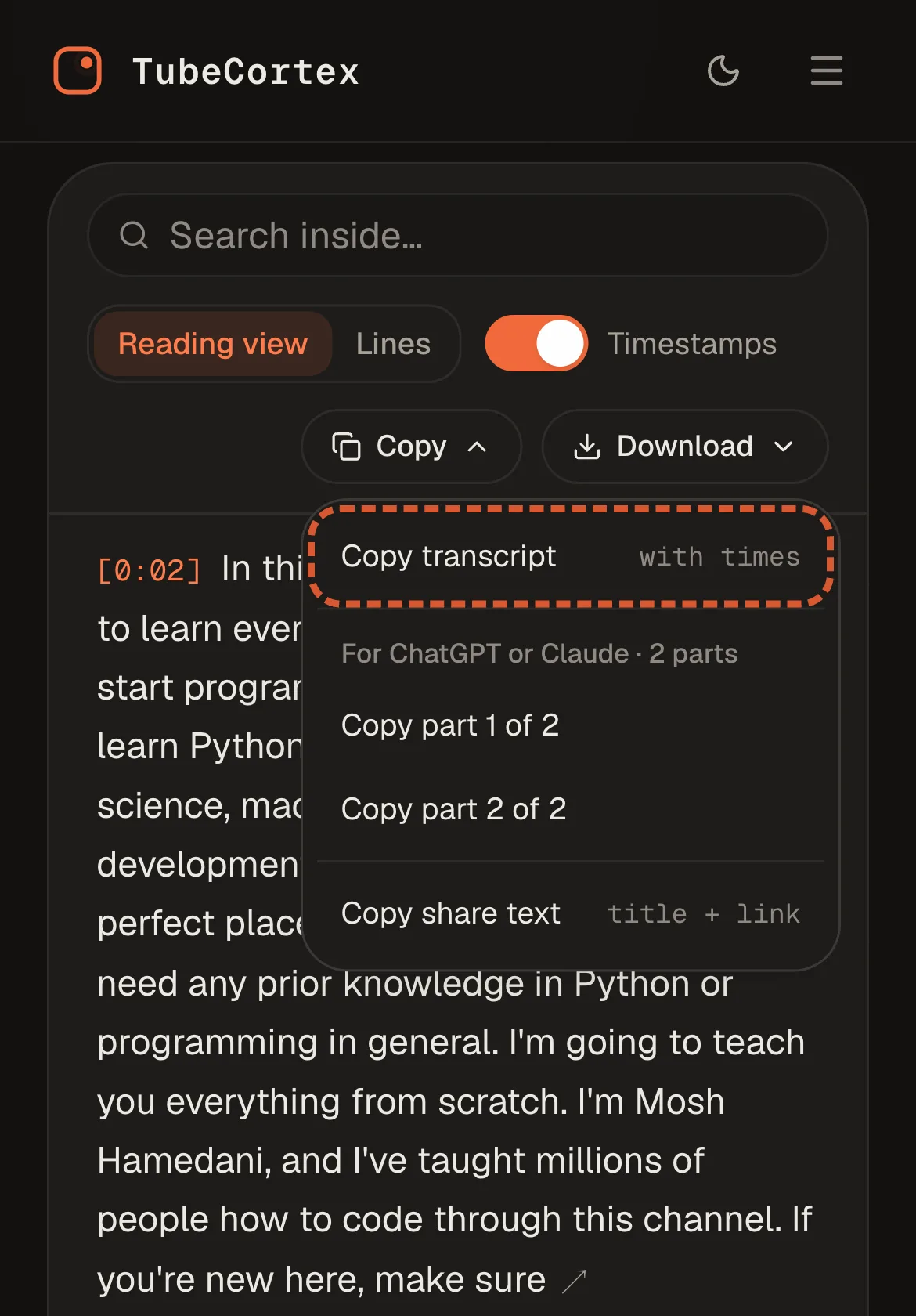
On a phone, the same Copy menu sits just above the transcript.
How to copy a YouTube transcript without timestamps
To copy a YouTube transcript without timestamps, turn off the Timestamps switch in TubeCortex's free transcript tool before you press Copy, or download Text only as a .txt file. Both give you the words alone. On YouTube's own panel, the matching option is Toggle timestamps, in the three-dot menu described next.
The built-in way: copy a transcript from YouTube on a computer
YouTube has its own transcript panel. Its help page says to open the video description and click Show transcript, and that you can see the full transcript of any video that has captions. We checked the first three steps ourselves on October 18, 2026:
- Under the video, click "...more" to open the description.
- Click Show transcript. A panel called "In this video" opens beside the player, with Chapters and Transcript tabs.
- To hide the times, click the three dots at the top of that panel and choose Toggle timestamps. (In our check, signed out, Toggle timestamps was the only option there.)
- Drag across the lines you want and copy them with Ctrl+C, or Cmd+C on a Mac. That's how desktop guides describe it; the text didn't load in our test browser, so we couldn't try this step ourselves.
It works. But there's no copy button and no download in that panel, so a long lecture means a long drag.
Copy a transcript into ChatGPT or Claude
Pasting into an AI chat? Use the rows for ChatGPT or Claude instead of Copy transcript. They tell the chat what to do with the text: write a two-to-three-sentence summary, list the key takeaways with timestamps, and outline it by topic.
A short video gets one row, Copy for ChatGPT or Claude, and that one paste carries the whole request. A long transcript comes in parts, so each one fits in a chat box: the menu shows a "For ChatGPT or Claude · 2 parts" heading over "Copy part 1 of 2" and "Copy part 2 of 2" (more parts for a longer video). Paste them in order. The earlier parts ask the chat to wait, and the last part asks for the summary. Our one-hour Python lesson needed two parts.
Rather skip the pasting? TubeCortex can summarize a YouTube video with AI for you, in five formats, including Student, which turns a lecture into timestamped notes. That part needs a free account, and new accounts get 2,500 free credits (dozens of full-length summaries), no card needed. Create your free account.
How the transcript tool actually works
Here's what happens after you press Get transcript, in plain words.
Where the words come from
Many YouTube videos carry captions: the subtitles you switch on with the CC button. Some are added by the creator. Others are written by YouTube itself, automatically. TubeCortex's transcript tool copies those captions. Think of photocopying the subtitles that already exist, not hiring someone to listen and type. It reads only what's already written, and the sound itself never comes into it.
Why some videos have no transcript
No captions, no transcript. That happens when captions are turned off for the video, or when a video is so new that YouTube's automatic captions aren't ready yet (try again later for those). TubeCortex's tool says which of the two it ran into. A video with perfectly clear speech and no captions still won't work, because there's nothing written down to copy.
Why it reads like paragraphs
YouTube sends captions as short scraps of a few words, timed to the speech. Reading view joins those scraps into paragraphs, breaking at the end of a sentence, at a pause, or when a paragraph gets long. It only decides where a paragraph starts. It never changes a word. Switch to Lines to see the scraps exactly as YouTube sent them.
The words are YouTube's, mistakes included, which is why every transcript carries the label "YouTube's captions · may contain errors." If you want to know how TubeCortex goes further and answers questions from those words, here's how AI summarizes and answers from video.
What this looks like in practice
Say your Python course assigns Programming with Mosh's one-hour beginner lesson, and you need notes on while loops by tomorrow. The video runs 1:00:01. Scrubbing through it to find the loops section is the slow way, because it doesn't start until 41 minutes in.
Here's the fast way:
- Paste the link into the transcript tool. You get 9,840 words, which the tool puts at about a 49-minute read.
- Type "while loop" into Search inside and turn on Matching lines only.
- Six matches. The first one sits at 41:46.
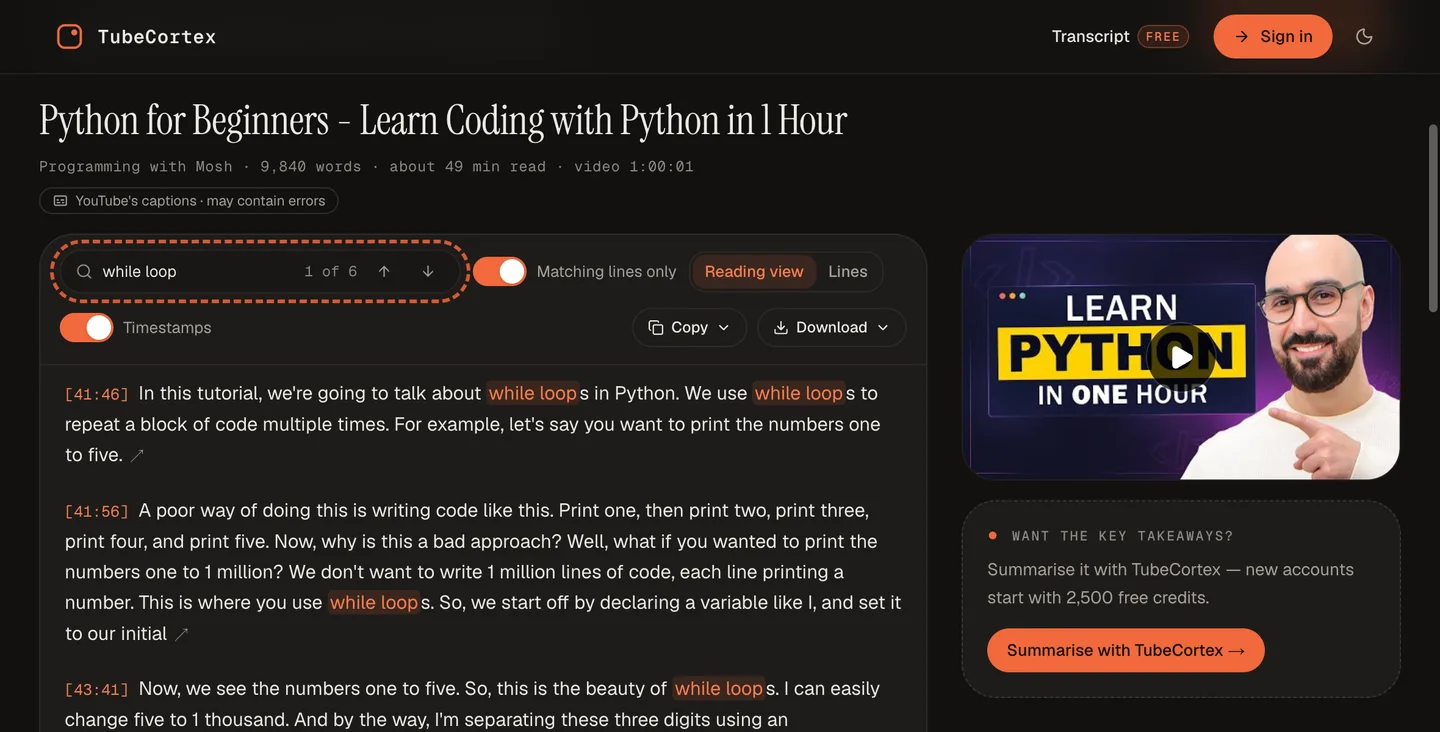
Searching "while loop" with Matching lines only on finds six matches, and the first one starts at 41:46.
Read those few paragraphs right there. Tap 41:46 if you want to watch Mosh type the code. Then press Copy when you want the full text in your notes. One search, instead of sitting through 41 minutes to get there (and you still get to watch the part that matters).
Who else copies transcripts
This guide is written for students, but TubeCortex's transcript tool does other jobs too:
- Researchers can quote a talk word for word and keep the timestamp as the reference.
- Creators can pull a line from their own video for a description or a post.
- If you want to ask questions across a whole course instead of copying one video, turn a YouTube playlist into notes you can ask.
What the transcript tool can and can't do
Note: The tool needs captions. A video without captions has no transcript to copy, and the tool can't transcribe one.
Note: The tool has no option to translate captions, and it shows whichever caption track YouTube hands over, which isn't always in the language the video is spoken in.
Note: The words are YouTube's captions, exactly. Automatic captions can get words wrong, so check names and numbers before you quote them.
Note: Copy transcript keeps YouTube's short caption lines, one per line. Our one-hour lesson pasted as 1,642 lines, so you may want to join them up in your document.
Note: Without an account, there is a daily limit on videos nobody has fetched on TubeCortex before, and a quick robot check for each one. Signing in skips the check and raises the limit.
Frequently asked questions
How do I copy a YouTube transcript without timestamps?
Turn the Timestamps switch off in TubeCortex's free transcript tool before you press Copy, and the text comes out with no times in it. You can also download Text only as a .txt file. On YouTube itself, open the transcript panel's three-dot menu and choose Toggle timestamps before you select the text.
Can I copy a YouTube transcript on my phone?
Yes: paste the video's link into TubeCortex's free transcript tool in your phone's browser, tap Get transcript (the orange button), then tap Copy and Copy transcript. It works the same on an iPhone, an iPad or an Android phone, and you never have to select text inside the YouTube app.
How do I get a YouTube transcript into Word or Google Docs?
Press Copy transcript and paste into your document, or download Text only as a .txt file and open it in Word or Google Docs. Either way, each caption line arrives on its own line, so a long video pastes as a long column of short lines.
Why can't I find the transcript on a YouTube video?
A YouTube video has a transcript only if it has captions, and some videos don't. Captions may be turned off for that video, or YouTube's automatic captions may not be ready yet for a brand-new upload. TubeCortex's tool tells you which of those it ran into, and it can't write captions that don't exist.
Is the transcript tool free, and do I need an account?
TubeCortex's transcript tool is free to read, search, copy and download, and it needs no account. Signing in skips the occasional robot check and raises the limit on videos nobody has fetched before. Sign up free if you also want summaries and chat.
Recap
Copying a YouTube transcript with TubeCortex's free tool comes down to a paste and a press: link in, Timestamps on or off, Copy. On a computer, YouTube's own panel works if you don't mind dragging. On a phone, the free tool skips the selecting entirely. And when you'd rather have the key points than 9,840 words, TubeCortex can summarize the video for you.
If you'd rather read a lecture than sit through it again, paste your next one into the free transcript tool.