22 Nov 2026 · TubeCortex
How to Take Notes From YouTube Videos (With Timestamps)
Stop pausing to type. Paste a lecture's link into TubeCortex and get notes in the speaker's own order, with the minute each topic starts in the video.
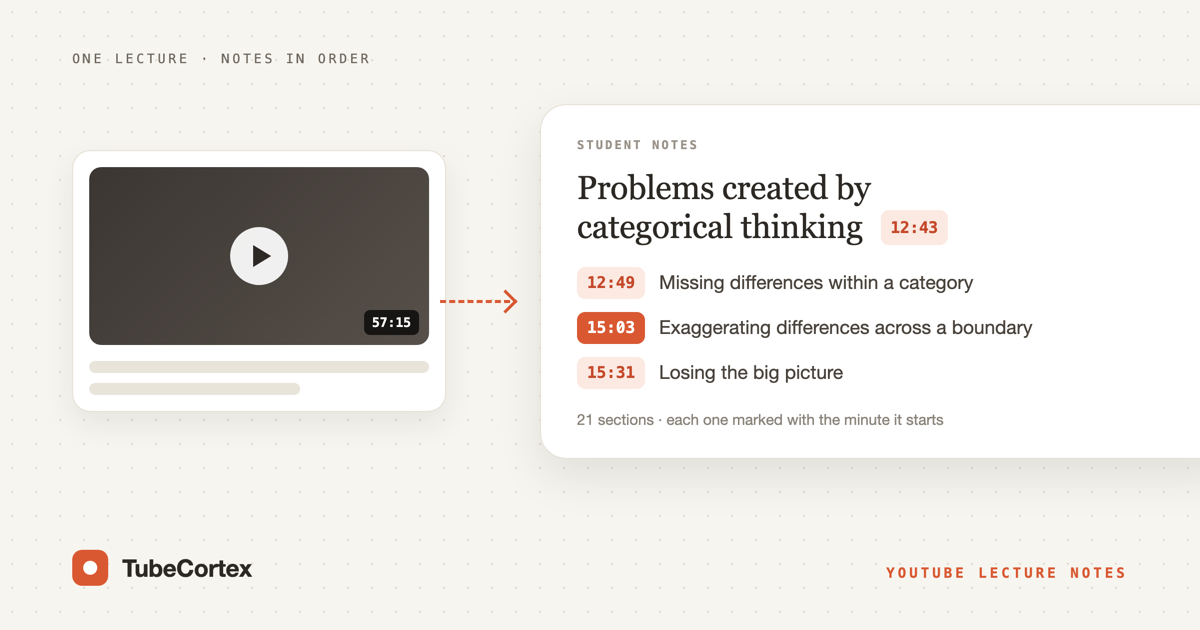
You have a long YouTube lecture to get through, and pausing every few minutes to type is turning one hour into a whole evening. To take notes from YouTube videos fast, paste the video's link into TubeCortex, choose the Student summary type, and press Summarize: you get notes in the lecture's own order, with the time each topic starts. We tried it once, on Robert Sapolsky's 57-minute Stanford lecture, "Introduction to Human Behavioral Biology." In that one test run, TubeCortex had the notes ready in about a minute: 21 sections, 4,160 words, and a time on every heading.
TubeCortex's Student notes at a glance
| What it does | Turns a YouTube video into written notes, in the order the speaker said things |
| Best for | Students with lectures to get through, and anyone who learns from long videos |
| What you give it | A link to a YouTube video that has captions |
| What you get back | Notes with a heading for each topic, the time each topic starts, and a Copy button |
| Free to start | 2,500 free credits (dozens of full-length summaries), no card needed. Create your free account |
How to take notes from a YouTube video in 4 steps
1. Paste the lecture's link
Copy the video's link: it's the address in your browser bar, or Share and then Copy link in the YouTube app. Sign in to TubeCortex with Google and open Home. On a computer the box is called Quick summary, on the right of the page; on a phone it's the paste box near the top, and its options appear once you tap into it. Paste the link where it says "Paste a YouTube link…". Don't press the arrow yet.
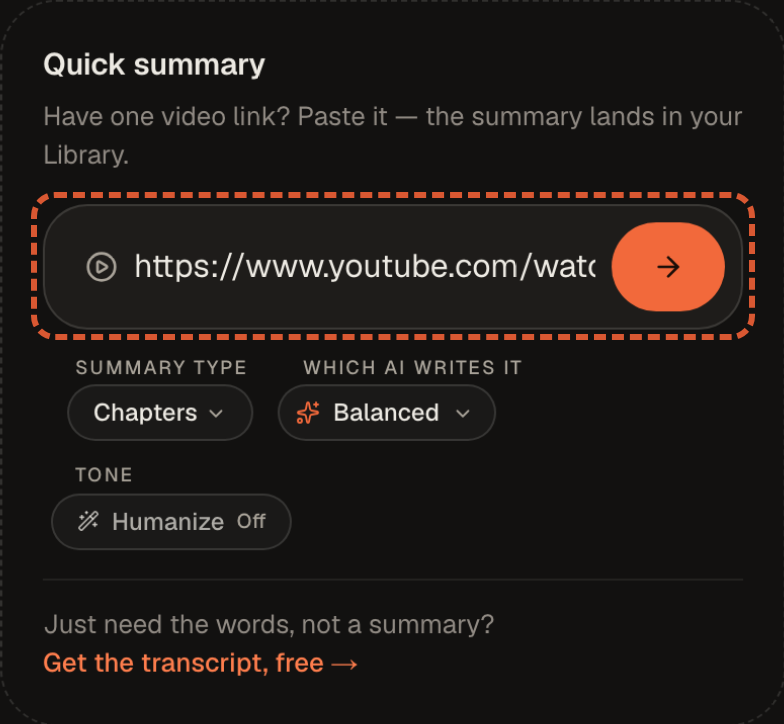
Paste the lecture's YouTube link into the Quick summary box.
2. Choose Student as the summary type
Under the box, open Summary type (the button showing your current type, such as Chapters) and pick Student, the one TubeCortex describes as "Notes in the video's own order." On a small screen you may need to scroll the list to reach it.
Leave the button next to it, the AI setting (such as Balanced), as it is, or pick TubeCortex Free in that menu if you'd rather the summary spent no credits. (We ran our test on Balanced and didn't time TubeCortex Free.)
Our take: for a class you'll be tested on, Student is the one to pick. Your exam follows the lecture, so your notes should too. (Teacher, in the same menu, rebuilds the topic from scratch with its own examples. That's great when you're lost, but it's not a record of what your lecturer said.)
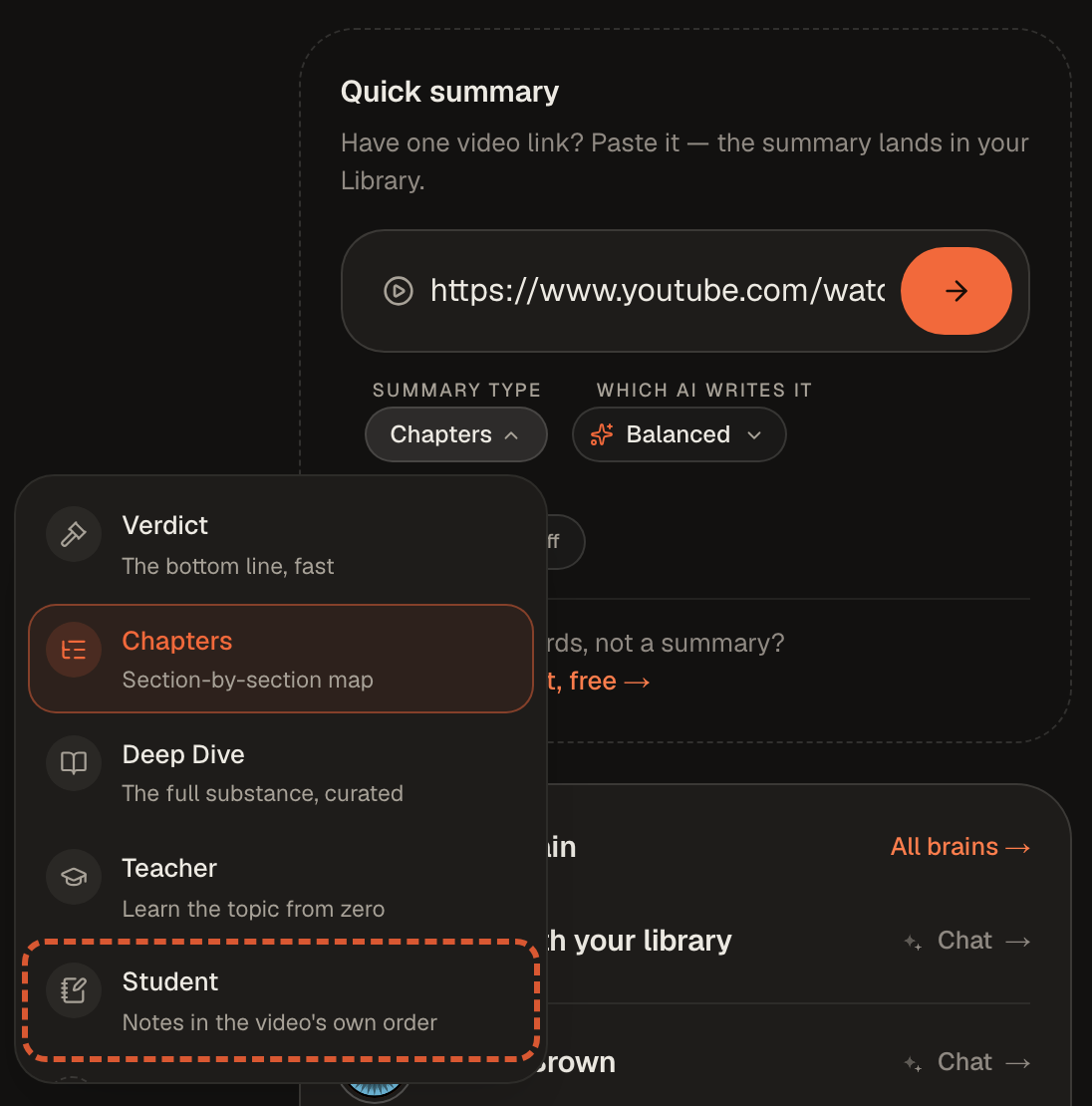
Open Summary type and choose Student.
3. Press Summarize and read your notes
Press the orange arrow at the end of the box (where there's room, it reads Summarize video). When the notes are done, TubeCortex opens them on their own page. In our one run on the Balanced setting, that took about a minute for a 57-minute lecture.
Each topic in TubeCortex's Student notes gets a heading, and Student is set up to put the time that topic starts on each heading (in our test, every heading had one). Smaller points sit underneath as sub-headings and bullets. The notes are saved to your Library too, so you can come back to them before the exam.
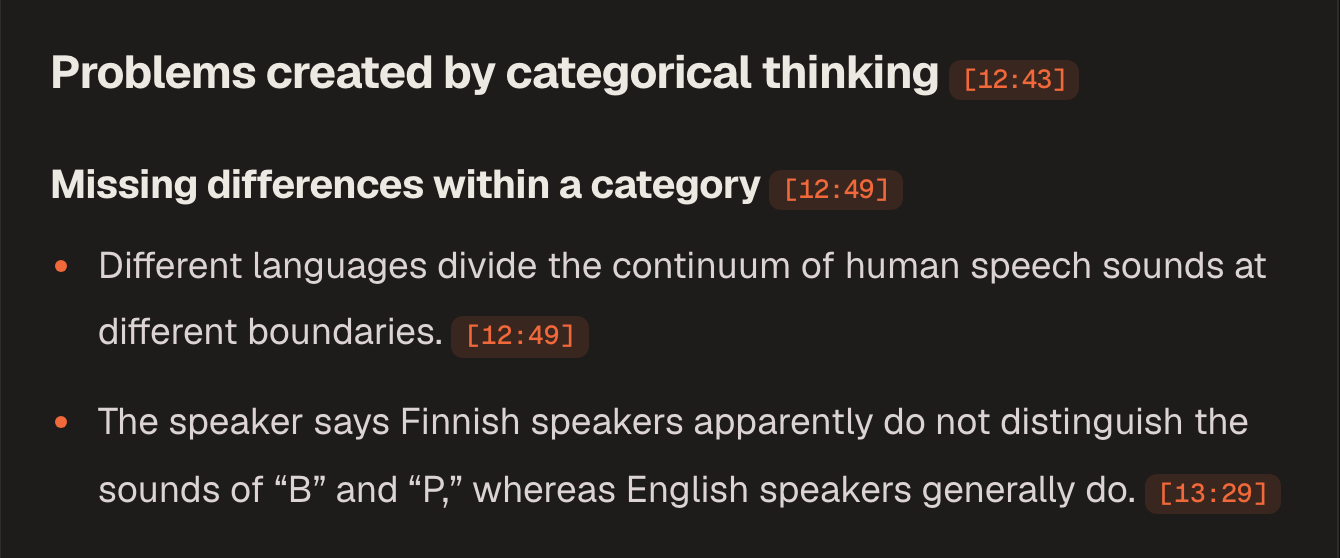
Every topic in the notes has a heading with the time it starts.
4. Copy your notes, or tap a time to rewatch
Press Copy summary at the top of the notes, then paste into Google Docs, OneNote, Notion or wherever you study. Want to see the moment behind a note? Tap its time, and the video jumps there and plays.
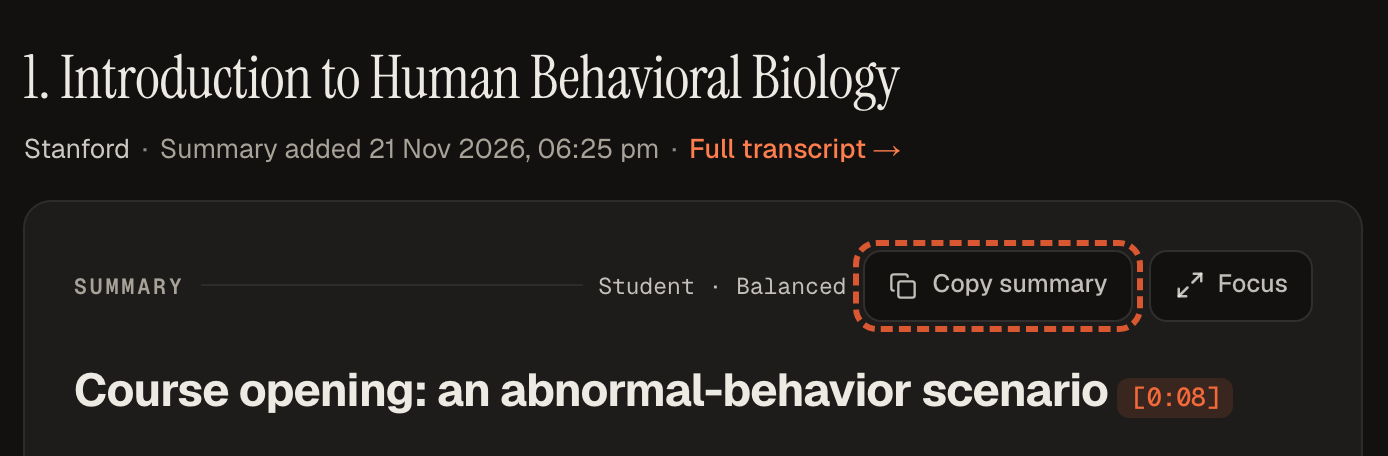
Press Copy summary to put the whole set of notes on your clipboard.
That's it: one link in, a full set of notes out, and the topic headings in TubeCortex's notes point back to their minutes in the lecture.
How to take notes from YouTube videos by hand
No account needed, just you and the video. This is the slow route, but it works, and writing every line yourself has its own value: you have to decide what matters.
- Watch in chunks of 10 to 15 minutes. Pause when the speaker moves to a new topic, not in the middle of one.
- Write the time next to every note, like "12:43, categories." It's the one habit that makes notes useful later, because it tells you where to rewatch.
- Check wording against YouTube's transcript. Its help page says to open the video description and click Show transcript. You can then click any line to jump to that part of the video.
Prefer to work from the full text? Paste the link into TubeCortex's free YouTube transcript tool, which needs no account, and copy the whole transcript in one go. (Without an account, a video nobody has fetched before may ask you to prove you're human first, and there's a daily limit on those.) Our guide on how to copy a YouTube transcript walks through it, phone included.
How TubeCortex's Student notes actually work
Here's what happens between pasting the link and reading the notes, in plain words.
Where the notes come from
Many YouTube videos carry captions: the subtitles you switch on with the CC button. Think of them as the lecture already written down, line by line. TubeCortex reads those captions, never the sound itself, and an AI turns them into tidy notes. So the notes are built from what was said out loud. That's also why a video without captions can't be summarized.
Why every heading has a time
Captions come with timing: each line knows the second it was spoken. So when the notes start a new topic, they can say exactly when it starts, like a page number in a textbook's index. Inside TubeCortex, every time is a link back into the video.
Why Student doesn't add its own examples
Picture two classmates. One writes down what the lecturer said, in order. The other goes home and explains the subject their own way. TubeCortex's Student format is built to be the first one: it keeps the speaker's examples and order, and isn't meant to add analogies of its own. It's also set up to mark a skipped sponsor read with a one-line note, and to flag a name or number that looks garbled in the captions. Teacher, the format beside it in TubeCortex's menu, is the second classmate.
If you want the longer version of how this works, here's how AI summarizes and answers from video.
What this looks like in practice
Say your psychology course assigns the first lecture of Sapolsky's Stanford course, and the midterm asks why sorting the world into categories can mislead you. The lecture runs 57 minutes and 15 seconds.
The by-hand way means watching it all, pausing to type.
The TubeCortex way:
- Paste the link, choose Student, press Summarize. About a minute later you have 21 sections and 4,160 words. If you read 200 words a minute, that's roughly a 21-minute read.
- Search the notes for "categor" with your browser's Find (Ctrl+F, or Cmd+F on a Mac). It lands on "Problems created by categorical thinking," which starts at 12:43.
- TubeCortex's notes break that section into four sub-points: missing differences within a category (12:49), exaggerating differences across a boundary (15:03), losing the big picture (15:31), and categories deciding which patterns you see (17:09).
- Tap 15:03. TubeCortex jumps the video to Sapolsky saying there's "a world of difference between getting a 65 on a test and a 66" once a pass mark sits between them.
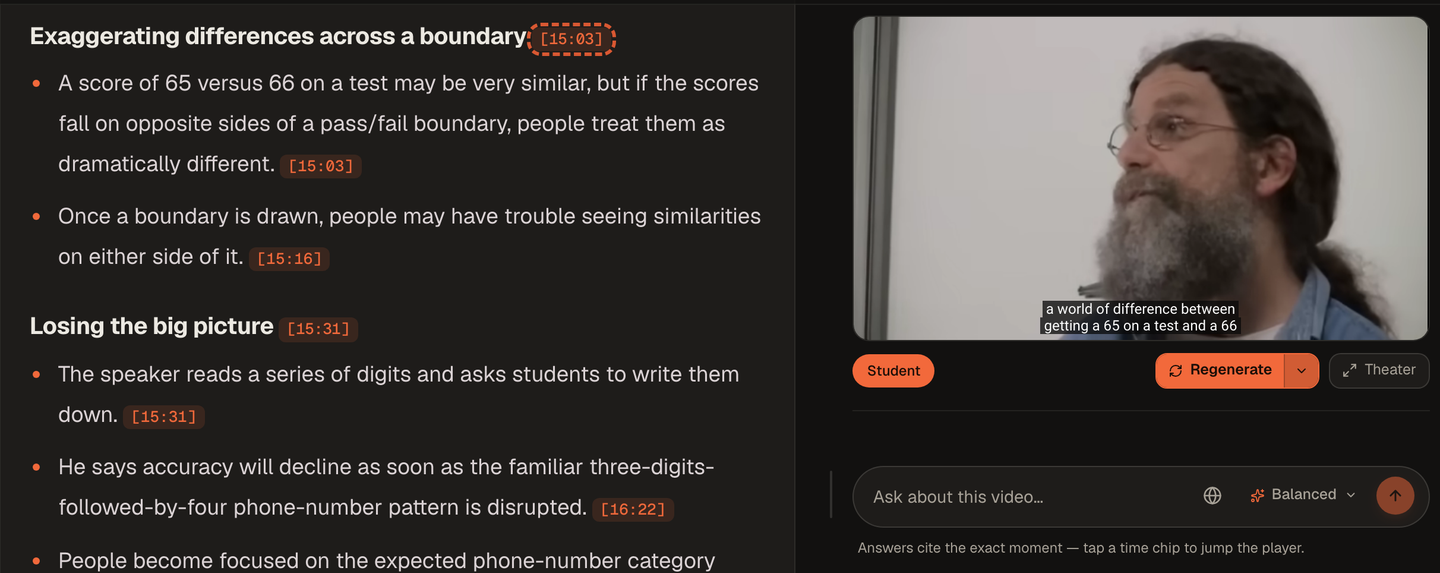
Tap a time in the notes and the lecture plays from that moment.
In our run, 182 of the 185 bullet points in TubeCortex's notes had a time of their own, on top of the headings. So you can check any single point in a few seconds instead of scrubbing for it. A few minutes of reading and one tap gets you the kind of answer a midterm wants, with the professor's own example attached.
Who else takes notes this way
This guide is written for students, but the same steps work for other jobs:
- Researchers can note a conference talk and keep the time as the reference for each point.
- Professionals can turn a training video on YouTube into notes for the team.
- If you want to ask questions across a whole course rather than read notes on one lecture, turn a YouTube playlist into notes you can ask.
What Student notes can and can't do
Note: Student notes need captions. A video with captions turned off has nothing for TubeCortex to read, and it can't work from the sound.
Note: The notes come from captions, and automatic captions can get names and numbers wrong. Check a name or figure against the video before you quote it. The time next to it takes you straight there.
Note: The notes can't see the screen. Slides, diagrams and anything written on a board aren't in the captions, so they aren't in the notes. For a lecture built on equations or charts, watch those parts.
Note: The times are links only inside TubeCortex. Copy summary gives you plain text: headings start with ## marks and the times sit in square brackets, like [12:43]. A Markdown app such as Obsidian shows the headings as headings. In Word, or a normal paste into Google Docs, the marks show as typed.
Note: Long lectures make long notes, because TubeCortex's Student format aims to keep each substantive point. Our 57 minutes became 4,160 words. If you only want the gist, pick Verdict or Chapters instead.
Note: Summarizing needs a free TubeCortex account. It uses credits unless you pick TubeCortex Free. The free transcript tool needs no account, though without one there's a daily limit on videos nobody has fetched before; signing in raises it.
Frequently asked questions
How do I take notes from a YouTube video using AI?
Paste the video's link into TubeCortex's Quick summary box, choose the Student summary type, and press Summarize. You get notes in the video's own order, with a heading for each topic and the time it starts. Press Copy summary to paste them anywhere.
Can I take notes from YouTube videos for free?
Yes, you can take notes from YouTube videos for free, either by hand from YouTube's own transcript or from the full text TubeCortex's free transcript tool gives you with no account. For AI notes, new TubeCortex accounts get 2,500 free credits (dozens of full-length summaries), no card needed, and picking TubeCortex Free spends no credits on a summary you start yourself. Sign up free.
Do the notes include timestamps?
Yes: TubeCortex's Student notes are set up to put the time each topic starts on its heading, and in our test every heading had one. Inside TubeCortex each time is a link, so tapping it jumps the video to that moment. 182 of the 185 bullet points had their own time too.
How do I copy notes from a YouTube video?
Press Copy summary at the top of your TubeCortex notes, then paste them into your notes app or document. They arrive as plain text: headings start with ## marks and the times sit in square brackets, so a Markdown app like Obsidian shows them as headings, while Word shows the marks as typed.
Why won't some YouTube videos turn into notes?
TubeCortex reads a video's captions, so a video without captions has nothing to turn into notes. That happens when captions are turned off for a video, or when a brand-new upload's automatic captions aren't ready yet.
Recap
Taking notes from a YouTube video no longer has to mean pause, type, rewind. Paste the link into TubeCortex, choose Student, and you get the lecture's points in order, each topic marked with its minute and a Copy button to take it anywhere. The by-hand route still works if you'd rather write every line, and the free transcript tool gives you the full text with no account.
Got a lecture to get through tonight? Paste it into Quick summary and choose Student.